
 admin
admin 
There’s a specific kind of frustration that doesn’t show up in “tool reviews.” You finish the post. The content is optimized. The headings are clean. And then you lose 30 minutes moving it between places—Google Docs to WordPress, notes to a brief, draft to a client, keywords to a tracker, “final” to “final-final.”
That’s where NeuronWriter integrations matter. Not as shiny add-ons, but as friction removers: WordPress import/export, Google Search Console signals inside the editor, a Chrome extension for Google Docs/WordPress/Shopify workflows, plus Zapier-style automation when you’re ready to stop doing repetitive setup by hand.
This guide explains what connects, what requires which plan (especially Gold+), how to set up the most common workflows, and what to watch out for so “integration” doesn’t become “new problem.”
NeuronWriter integrations: WordPress integration and Google Search Console integration are easiest to understand when you see the editor workflow end-to-end.
Quick links
- NeuronWriter pricing (plan gating: Gold+)
- NeuronWriter review (fit vs not-fit)
- NeuronWriter API (automation beyond Zapier)
- NeuronWriter OpenAI key (BYOK) for cost control
NeuronWriter integrations overview (what connects)
NeuronWriter is primarily a SERP-driven content optimizer and editor. Integrations don’t change that. They change what happens around it—how drafts get created, optimized, shared, and shipped without turning your team into a copy/paste factory.
At a practical level, these are the integration lanes most people care about:
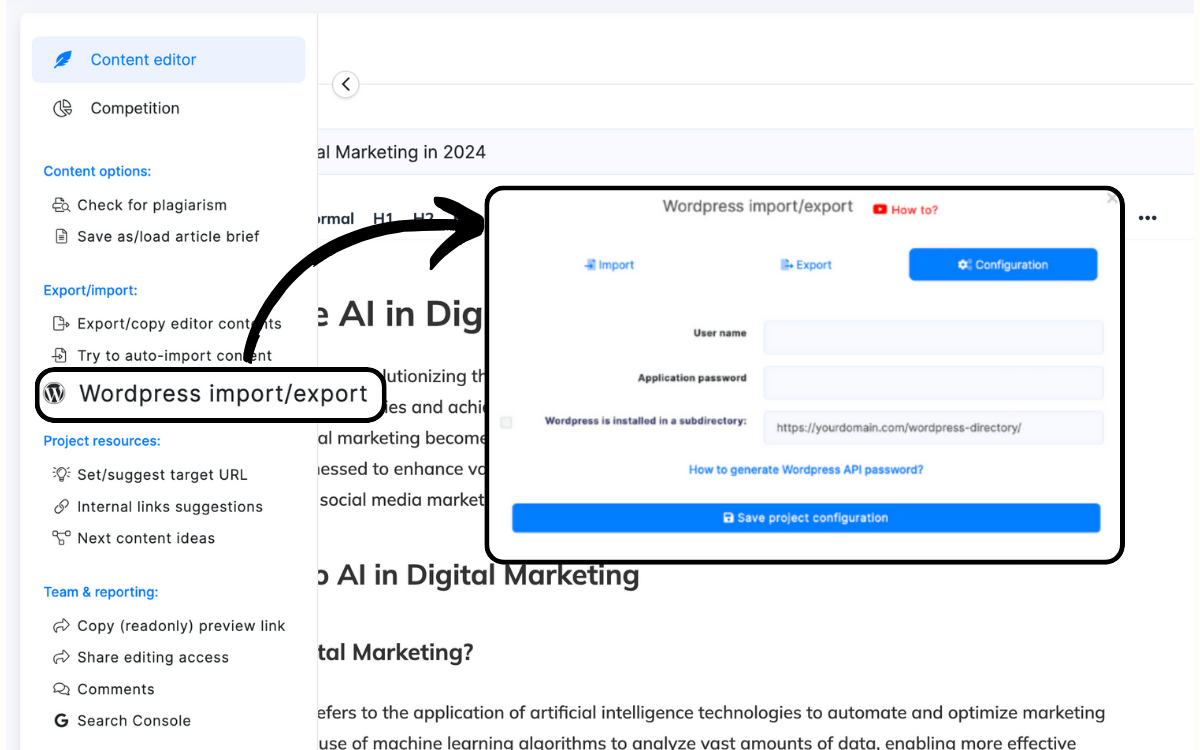
- Publishing lane: WordPress import/export so drafts can move to and from your site with less formatting drift.
- Performance lane: Google Search Console signals that help you choose what to refresh and how to prioritize optimization.
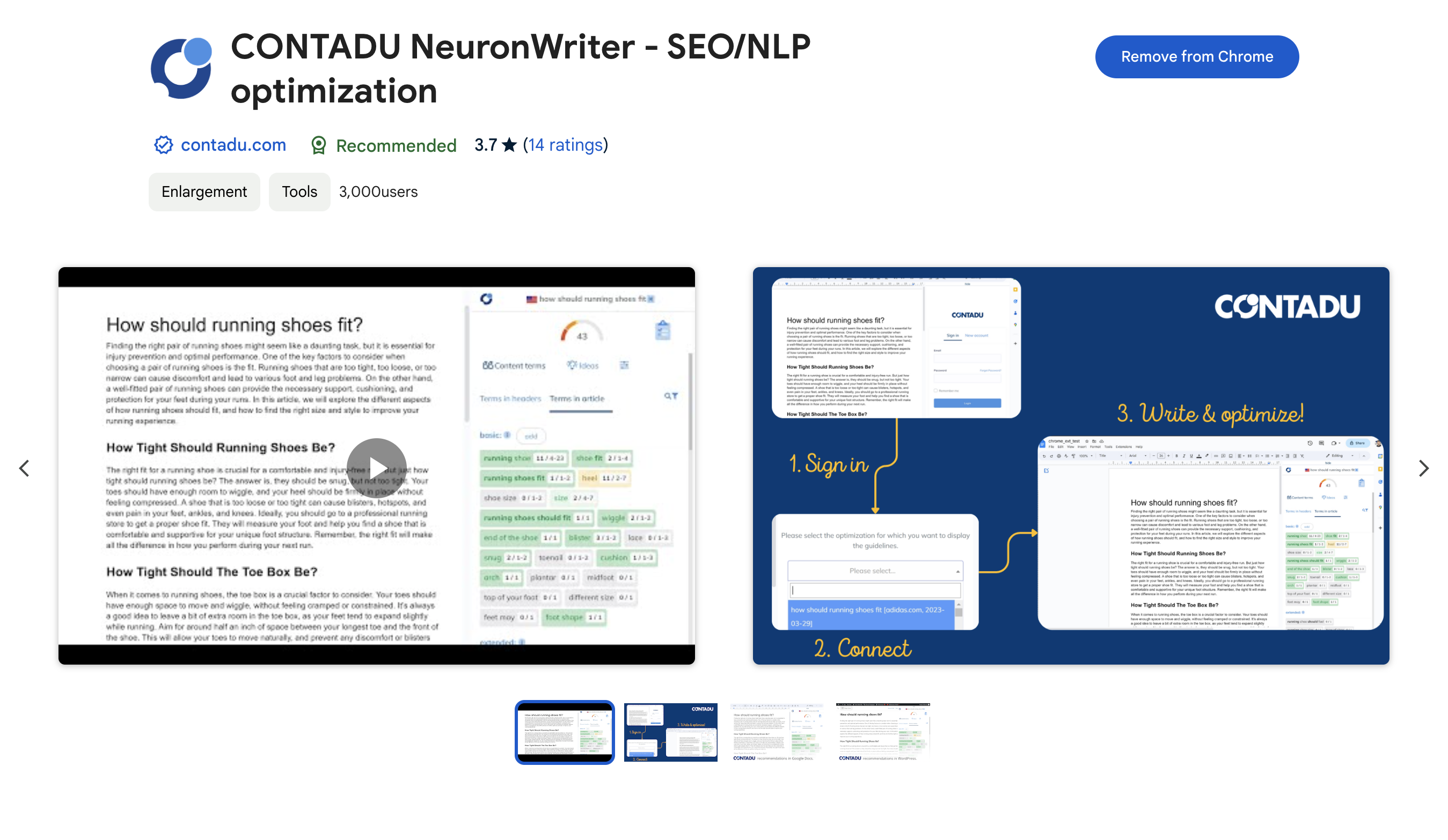
- Writing environment lane: a Chrome extension so you can optimize directly in Google Docs, WordPress, and Shopify editors.
- Automation lane: Zapier triggers/actions for query creation, status checks, recommendations, and retrieving editor content marked “Done.”
Plan note (important): NeuronWriter positions key integrations like Google Search Console and WordPress as features on Gold plan or higher. If integrations are your main reason for buying, confirm your tier first on NeuronWriter pricing.
If you want the cleanest “why this matters” framing: integrations don’t make content better by themselves. They make it easier to repeat a good workflow without losing time to busywork.
NeuronWriter WordPress integration (setup notes)
The WordPress integration is aimed at one boring (but expensive) problem: publishing friction. Even a simple blog post can lose structure when you copy from one editor to another—headings, lists, spacing, HTML blocks, internal links. Over a year, that friction adds up.
What the WordPress integration does (in plain terms)
- Import from WordPress: pull an existing post into NeuronWriter so you can optimize and revise it in the editor.
- Export to WordPress: push your updated draft back to WordPress from the editor (reducing manual copy/paste).
That’s it—and it’s enough. The point isn’t “one-click ranking.” It’s “fewer steps and fewer mistakes when you ship.”
What you need for setup
In most cases, WordPress integrations require a secure way for an external tool to authenticate. WordPress supports “Application Passwords” for this kind of use. If you want the canonical reference, use WordPress Application Passwords documentation before you connect anything.
How to use it in a real workflow
- Pick one post to refresh (ideally a post that already has impressions, but needs better coverage).
- Import into NeuronWriter and run optimization inside the editor.
- Export back to WordPress and do your final visual pass in the WP editor (formatting, tables, CTA blocks).
- Publish and track what changes (don’t change five things at once if you want clean learning).

Practical caution: treat export as “reduces steps,” not “removes editorial responsibility.” You still want a final check in WordPress for layout, internal links, and page-level UX.
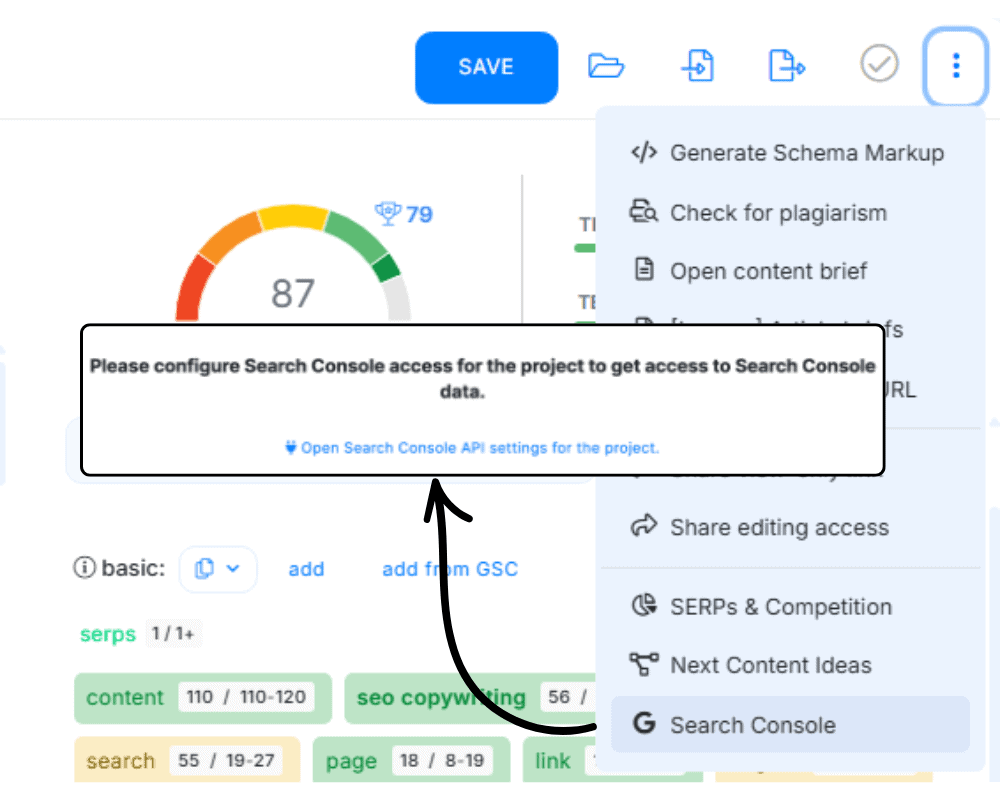
NeuronWriter Google Search Console integration (where to find it)
If WordPress integration solves publishing friction, Google Search Console integration solves prioritization. Most sites don’t need more content ideas—they need to know which existing pages are close to winning.
NeuronWriter states that GSC integration is available on Gold plan or higher and can be found in the editor menu. Once connected, the point is straightforward: use real query/impression data to decide what to update and what terms/questions to cover more clearly.
If you’re not using Search Console yet, start with Google’s official onboarding: Google Search Console getting started guide. It’s one of the few “SEO basics” links that stays useful year after year.

A simple way to use GSC + NeuronWriter together
- In GSC, identify pages with impressions but low CTR or average position hovering near page 2.
- Bring that target query into NeuronWriter and run a fresh SERP-based optimization pass.
- Update the page with intent-first improvements: clearer definitions, better comparisons, tighter structure.
- Wait long enough to measure (don’t panic-edit after two days).
This is the kind of workflow that turns “SEO” from guessing into iteration. It’s slower than hype posts promise—but it’s real.
Shopify + Chrome extension workflows
Not everyone writes in NeuronWriter’s editor from start to finish. Many teams draft in Google Docs, publish in WordPress, or manage product content in Shopify. The Chrome extension exists for that reality: optimize in your native environment without re-copying drafts into yet another editor.
Where the extension helps
- Google Docs drafting: writers stay in Docs; SEO guidance lives in a sidebar.
- WordPress editing: optimize directly where the post will be published.
- Shopify product content: improve product descriptions and on-page copy without leaving the Shopify editor.

NeuronWriter integrations: this tutorial shows how the editor and AI tools fit the workflow—useful before you set up extensions and automations.
Small honesty check: extensions are only helpful if your team will use them consistently. If writers ignore the sidebar or refuse to connect a query, the extension becomes a checkbox feature. If you’re running a team, pick one pilot writer and prove the habit first.
NeuronWriter Zapier integration and automation (when it’s worth it)
Zapier is not “integrations for everyone.” It’s integrations for the moment you keep repeating the same setup tasks:
- Creating a new query every time a keyword gets approved
- Checking query status manually
- Copying recommendations into briefs
- Collecting “done” drafts from the editor for publishing
NeuronWriter describes Zapier actions like generating new queries, checking query status, retrieving recommendations, and pulling editor content marked “Done.” If your operation is small, you can do that manually. If your operation is scaling, Zapier turns those clicks into a workflow.
If you’re already thinking past Zapier (bulk, custom pipelines, internal tooling), you’ll want the dedicated page: NeuronWriter API.
A “good enough” automation starter (no overbuilding)
- Trigger: new row added in a content sheet (keyword approved)
- Action: create NeuronWriter query
- Action: write query share URL back into the sheet
- Action: notify writer in Slack/Email with the link
This is boring automation—and it’s exactly why it works.
Common setup mistakes (and how to avoid them)
1) Buying the wrong plan because you only looked at “credits”
If integrations are your deciding factor, you should start your plan comparison at Gold. Don’t spend time trying to “make it work” on a lower tier if the features you care about are gated. Use NeuronWriter pricing to confirm the current plan breakdown.
2) Expecting “one-click publish” everywhere
Most publishing integrations reduce steps. They rarely remove all steps. Keep the final editorial check in WordPress or Shopify so formatting and UX stay clean.
3) Automation before workflow
Zapier and API workflows magnify whatever process you already have. If your briefs are inconsistent, automation will just scale the inconsistency. Pilot the editor workflow first. Then automate the repeatable parts.
4) Ignoring security when connecting accounts
When you connect WordPress or any external account, use documented methods like application passwords, limit who has access, and rotate credentials if team roles change. The official WordPress Application Passwords documentation is the best baseline.
